Documentation · v1.0.0
Getting Started with Senada
Everything you need to install, set up, and enjoy Senada on Windows and Mac.
Installation
Senada is distributed as a standard Windows installer (.exe). Download it from the website and follow the steps below.
Download the installer
Click Download for Windows on the homepage. The file Senada-Setup-x64-v1.0.0.exe will begin downloading.
Handle the SmartScreen warning (if it appears)
Windows may show a security warning. This is normal for apps distributed outside the Microsoft Store. See the SmartScreen guide below for how to proceed.
Run the installer
Follow the on-screen prompts. Senada will install to your Applications folder and create a shortcut on the desktop.
Launch Senada
Open Senada from the desktop shortcut or Start menu. It will appear in your system tray and be ready to use.
Windows SmartScreen Warning
You may encounter SmartScreen warnings at two different points — when downloading in Edge, and when running the installer. Both are easy to bypass.
SmartScreen flags apps that don't yet have a Microsoft code signing certificate. Senada is safe — it's simply a new, independently distributed app. This warning is normal for many legitimate indie apps.
Part 1 — Warning in Microsoft Edge (during download)
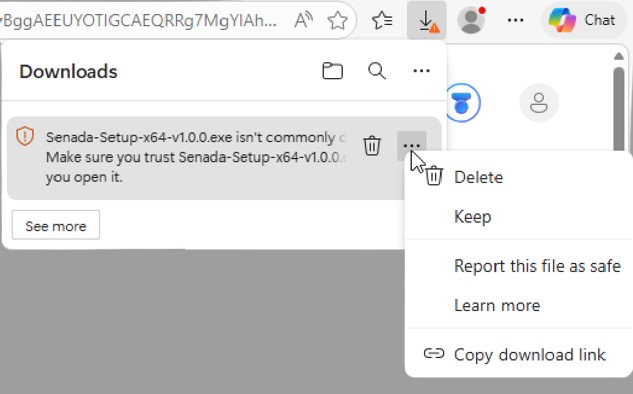
When downloading with Edge, the browser may flag the file in the Downloads bar. Here's how to keep it:
Click "···" then "Keep"
In the download notification, click the ··· menu and select Keep.
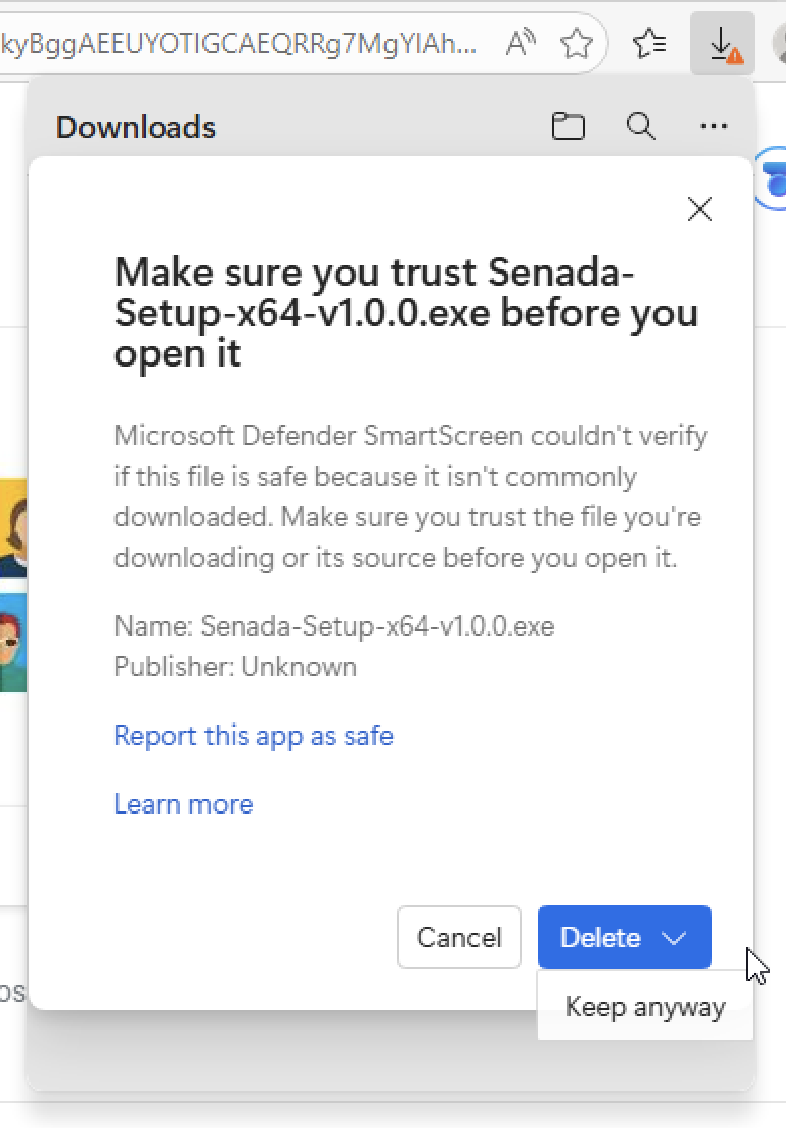
Click "Keep anyway"
On the confirmation dialog, click the dropdown arrow next to Delete and select Keep anyway.
File saved
The .exe is now saved in your Downloads folder. Open it to begin installation.
Part 2 — Warning when running the installer
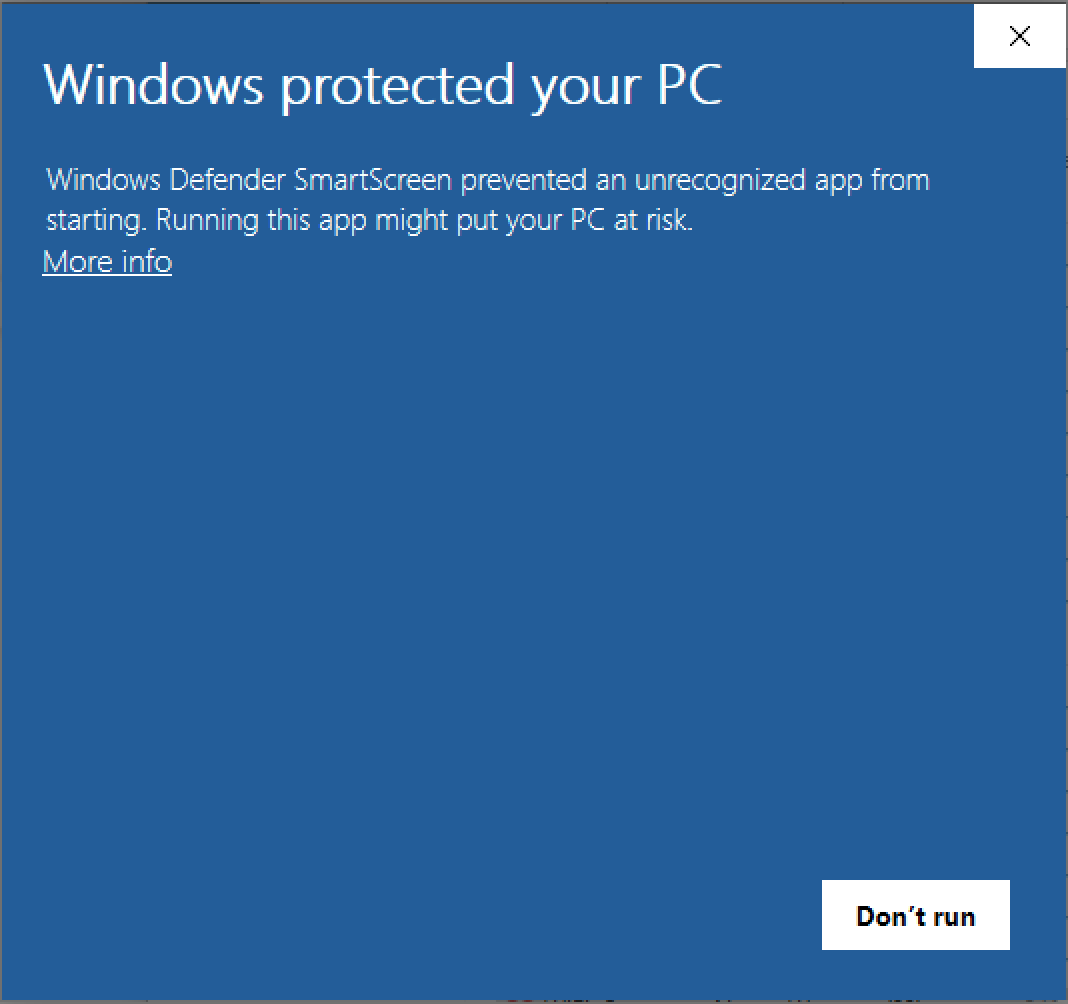
After opening the .exe, Windows may show a blue SmartScreen dialog. Follow these steps:
Click "More info"
On the first dialog, click the "More info" link to reveal more options.
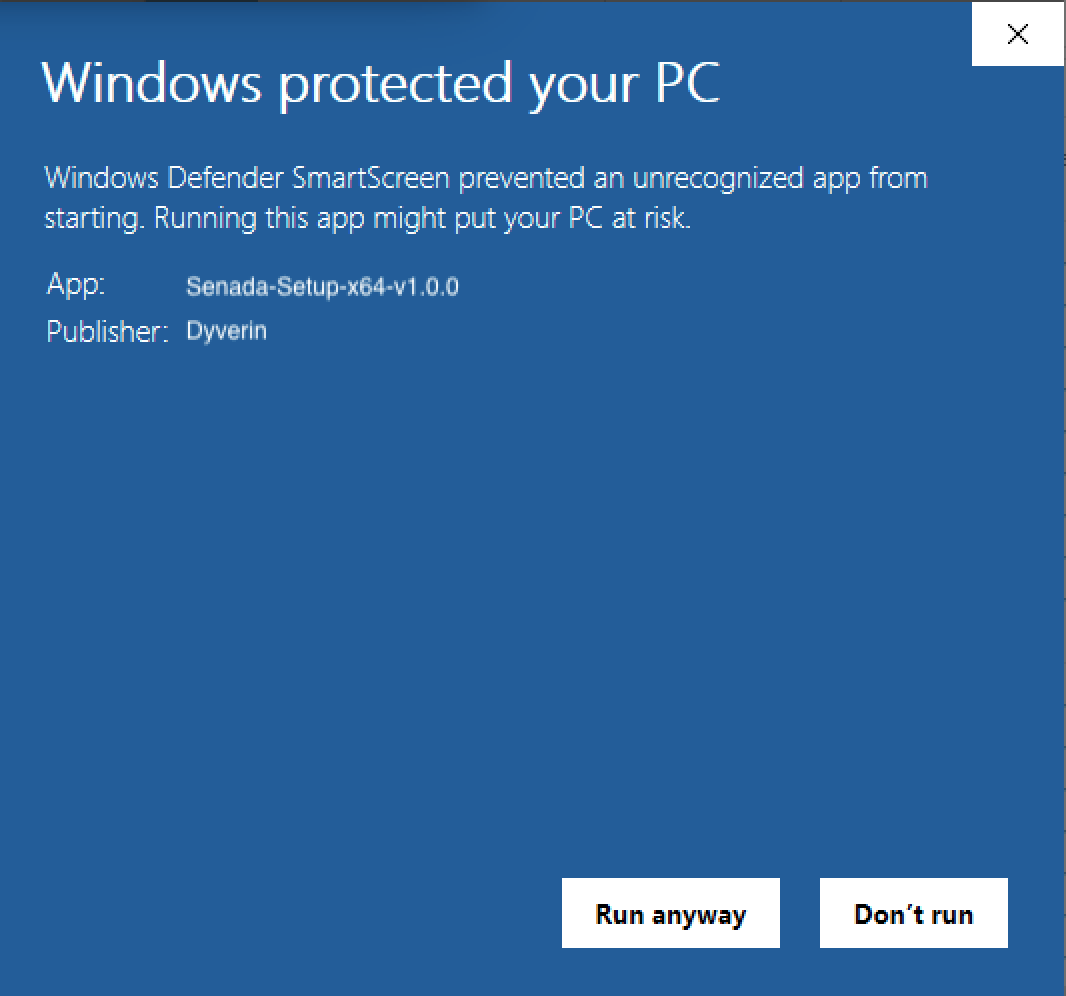
Click "Run anyway"
The "Run anyway" button appears. Click it to proceed with installation.
Installation begins
The installer launches normally. SmartScreen won't appear again for this version.
If SmartScreen can't connect to Microsoft's servers, you may see a different dialog saying "SmartScreen can't be reached right now". In this case, simply click Run to continue.
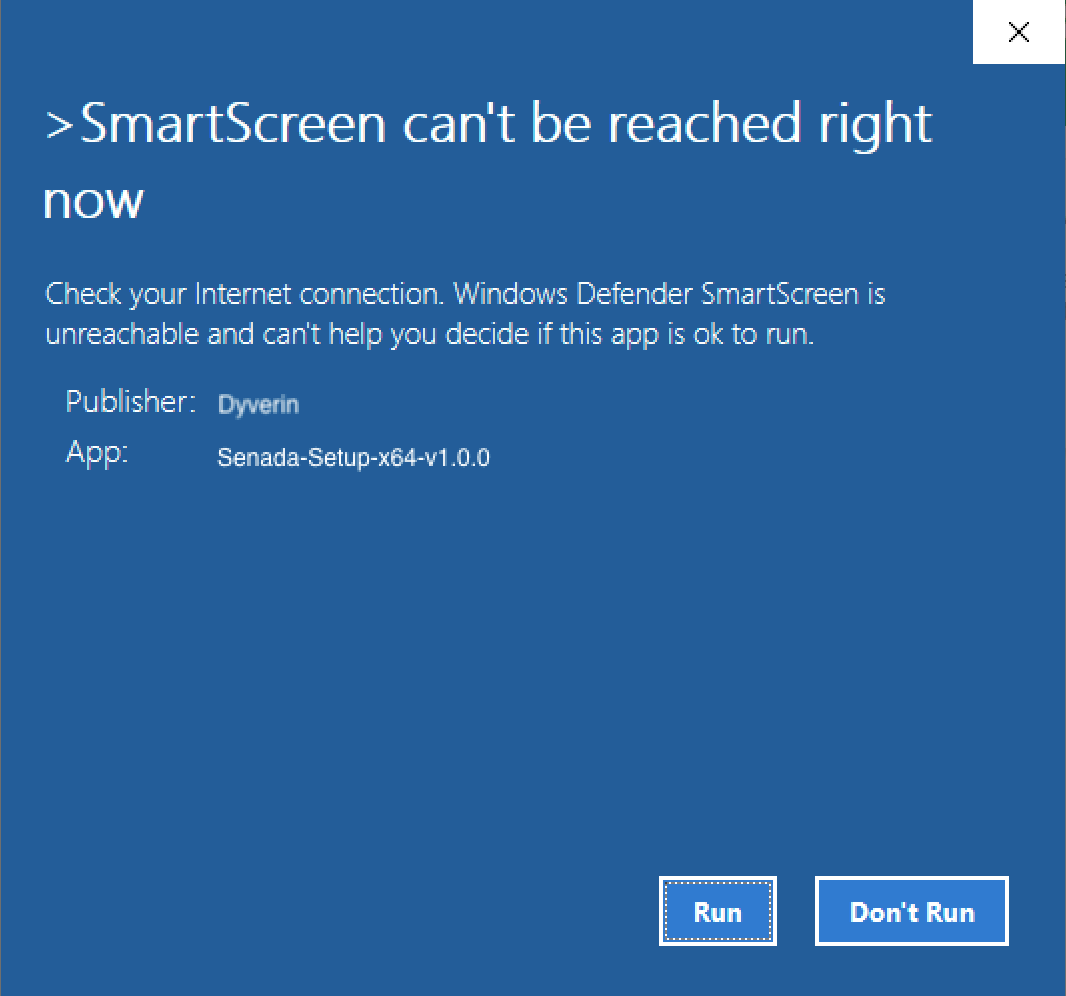
If you're uncomfortable bypassing SmartScreen, you can scan the installer with any antivirus before running. Senada contains no malware or telemetry.
Part 3 — Warning on Mac (Gatekeeper)
On Mac, you may see a dialog saying "senada" can't be opened because Apple cannot check it for malicious software. This is Mac's Gatekeeper — similar to Windows SmartScreen.
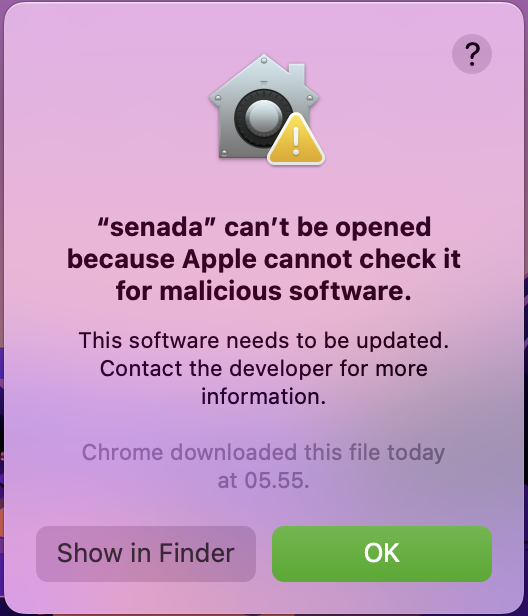
Senada is not yet notarized by Apple. This requires an Apple Developer Program membership ($99/year). The app is safe — Gatekeeper simply doesn't recognize it as a verified developer yet.
To open Senada on Mac, follow these steps:
Click "OK" to dismiss
On the Gatekeeper dialog, click OK to close it.
Open Privacy & Security
Go to System Settings → Privacy & Security, scroll down to the Security section.
Click "Open Anyway"
You'll see a message that Senada was blocked. Click Open Anyway to allow it.
Senada opens
Mac will ask one final confirmation — click Open. Gatekeeper won't block it again after this.
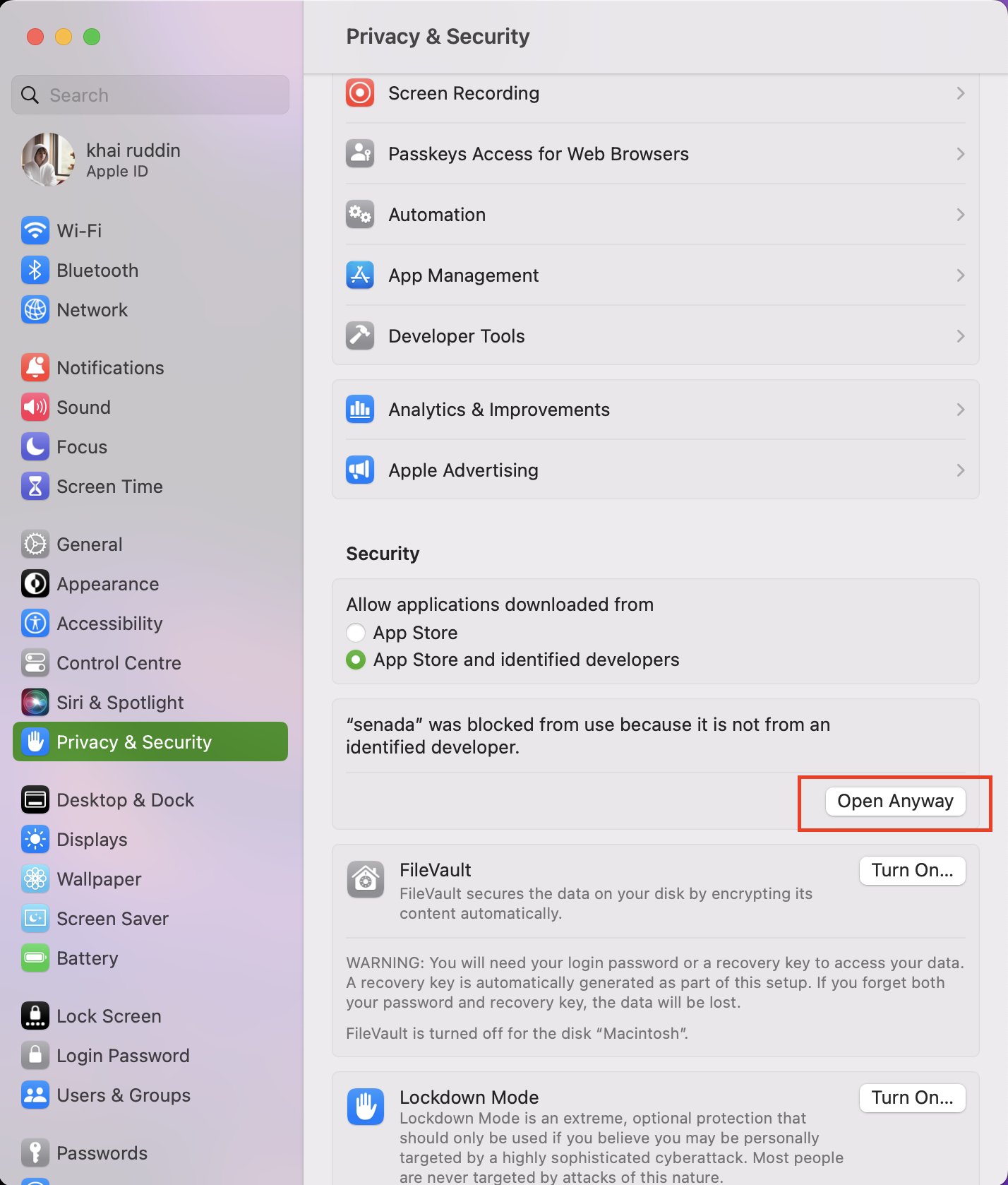
You only need to do this once. After clicking Open Anyway, Senada will launch normally every time without any further warnings.
First Launch
After installation, Senada starts automatically and minimizes to the system tray — the small icons area at the bottom-right corner of your taskbar. You may need to click the ∧ arrow to reveal hidden icons.
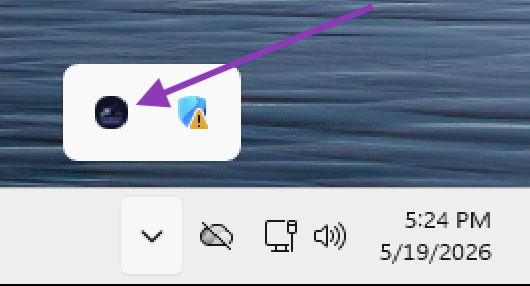
Click the Senada icon to open the sound selector. On first launch, only Night Crickets is available — this is the free sound pack with no limitations. Start typing in any app and you'll hear it immediately.
Senada works globally — it picks up keystrokes from any application while running in the background. You don't need to keep its window open.
Sound Packs
Senada comes with 10 sound packs. One is permanently free, and the rest unlock with a single $5 purchase.
Night Crickets FREE
Peaceful night ambiance. Crickets that feel like home.
Forest Birds
Nightingale forest ambiance — birdsong with depth.
Mystic Forest
Deep forest atmosphere, slightly eerie and immersive.
Dark Cave
Water drops echoing in the deep. Focus-inducing.
Riverside Dusk · Japanese Piano · Cat Meow · Laughing · Baby Giggle · Applause
Six more packs ranging from serene to playful. All included with the $5 unlock.
Unlocking the Full Version
To unlock all 10 sound packs, click the "Unlock — $5" button inside the Senada app. You'll be taken to our payment page to complete the purchase.
Click "Unlock — $5" in the app
This opens your browser and takes you to the Senada purchase page.
Complete payment
Pay once via the secure checkout. You'll immediately receive a license key by email.
Enter your license key
Back in the Senada app, enter the license key to unlock all sound packs instantly.
$5 unlocks everything — including all future sound packs. No subscription, no recurring charges. Your license key works on up to 2 devices.
License Key
Your license key is sent to the email you used at checkout. Keep it somewhere safe — you'll need it if you reinstall Senada or set it up on another device.
Check your spam folder first. If you still can't find it, contact us at support@senada.dyverin.com with your purchase email and we'll resend it.